Guides Record yourself on a Mac

How to record yourself on a Mac

For one quick webcam video with audio, use QuickTime Player, which comes with every Mac. Use Takes for Mac when you want to read from a teleprompter, record several takes in one session and pick the best one.

Download .dmg

Takes for Mac is a free app for Apple silicon Macs with macOS 15 or later.

Built into macOS

Record with QuickTime Player or Photo Booth

Record with QuickTime Player

For one quick clip with your choice of camera and mic.

  1. 1

    Open QuickTime Player and choose FileNew Movie Recording.

  2. 2

    Click the arrow next to the red Record button. Under Camera and Microphone, select the devices you want to use.

  3. 3

    Click Record , speak, then click Stop.

  4. 4

    Choose FileSave. Name the video and pick a folder under Where, such as Desktop.

Apple’s recording guideApple’s saving guide

Record with Photo Booth

For casual clips you can browse in the app.

  1. 1

    Open Photo Booth. Click the Video button in the lower left.

  2. 2

    Click Record Video . Click Stop when you finish.

  3. 3

    The clip appears as a thumbnail. To get a .mov file, select the thumbnail and choose FileExport, then pick a folder.

Apple’s recording guideApple’s export guide

Setup

Set up the shot and check your sound

Pick a tip to see it on the camera view and on the desk from above.

Camera view
Notes Eye level Room above Chest up Light on your face Mic close
Desk from above
You Camera Look at the lens The frame Window Lamp Mic close

Then make a 10-second testMake a 10-second test and play it back before you record the whole video.

Compare

Apps for recording yourself on a Mac

  • One quick clip with your choice of camera and mic

    US price
    Included with macOS
    Teleprompter
    No
    Multiple takes
    Yes, save each file
  • Casual clips you can browse in the app

    US price
    Included with macOS
    Teleprompter
    No
    Multiple takes
    Yes, as thumbnails
  • Live streams or recordings with custom scenes

    US price
    Free
    Teleprompter
    No
    Multiple takes
    Yes, as separate files
  • Sending someone a link to a quick video

    US price
    Free plan, 5 min per video. Paid plans available.
    Teleprompter
    Yes, desktop speaker notes
    Multiple takes
    Yes, in its video library. Free plan caps videos at 25.
  • Editing your video by editing the transcript

    US price
    Free plan includes 60 media min/mo. Paid from $16/mo billed yearly.
    Teleprompter
    Yes
    Multiple takes
    Yes, as clips in a project
  • Using a phone as a webcam with controls for the picture

    US price
    Free plan with recording. Paid Pro available.
    Teleprompter
    No
    Multiple takes
    Yes, as separate files
  • Trimming and arranging clips on a timeline

    US price
    Free
    Teleprompter
    No
    Multiple takes
    Yes, as clips in an event or project
  • Reading a script and choosing your best take

    US price
    Free app
    Teleprompter
    Yes, can follow your voice
    Multiple takes
    Yes, in one session with stars for keepers

Other apps’ prices and features checked 2026-11-20. This guide is from Takes.

See the same apps as a table
AppUS priceBuilt-in teleprompterKeeps multiple takesBest for
QuickTime PlayerIncluded with macOSNoYes, save each fileOne quick clip with your choice of camera and mic
Photo BoothIncluded with macOSNoYes, as thumbnailsCasual clips you can browse in the app
OBS StudioFreeNoYes, as separate filesLive streams or recordings with custom scenes
LoomFree plan, 5 min per video. Paid plans available.Yes, desktop speaker notesYes, in its video library. Free plan caps videos at 25.Sending someone a link to a quick video
DescriptFree plan includes 60 media min/mo. Paid from $16/mo billed yearly.YesYes, as clips in a projectEditing your video by editing the transcript
Camo StudioFree plan with recording. Paid Pro available.NoYes, as separate filesUsing a phone as a webcam with controls for the picture
iMovieFreeNoYes, as clips in an event or projectTrimming and arranging clips on a timeline
Takes for MacFree appYes, can follow your voiceYes, in one session with stars for keepersReading a script and choosing your best take

Several takes

Record several takes in one Takes session

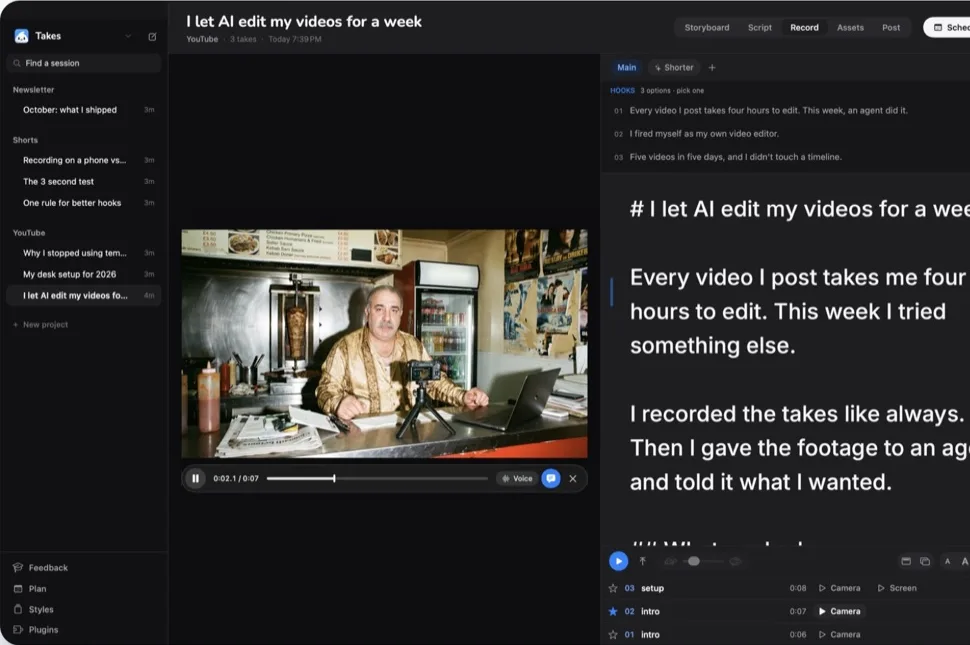
Takes for Mac on the Record tab: the camera preview with the Voice button, the script in the teleprompter, and three takes in the session with the second one starred
  1. 1

    Press ⌘N to make a session. In the Record tab, choose Camera mode for video and mic audio. If you have a script, paste it into the teleprompter and turn on Voice. The words move as you speak and wait when you pause.

  2. 2

    Press ⌘R to record and press it again to stop. Repeat in the same session. Takes saves each camera take as a separate file in the session folder under ~/Movies/Takes by default.

  3. 3

    Click Camera on a take to play it back. Star the best one to mark it as a keeper. You can watch the others again later.

Get Takes for Mac

The app runs on Apple silicon Macs with macOS 15 or later.

Download Takes for Mac

Keep reading

More about Takes

FAQ

Common questions

How do I record myself on a Mac without a built-in camera?

Connect an external webcam. In QuickTime Player, choose File › New Movie Recording, then select the webcam from the menu next to Record. Pick your microphone in the same menu.

Can I record several takes and choose one later?

Yes. In QuickTime Player, save each try in the same folder with a name like Take 1 or Take 2. In Takes for Mac, record in the same session and click the star on the take you want to keep.

Is Takes free?

Yes. The app is free. Agent features such as editing by chat need an AI agent such as Claude Code, which can require a paid plan.

Copied. Paste it in Terminal.