
Takes Guides
How to make a talking head video on a Mac.
Takes for Mac does it in four steps: write a script, read it on camera as you record, cut the mistakes, then post. Each step has a free guide below.
4 guides
Write and read the script.
Read on camera without looking away.
-
Teleprompter for Mac
The script sits in the notch, under the camera, and scrolls as you talk.
-
Online teleprompter
Free in the browser: paste, press Space, read. Voice scroll and mirror.
-
Teleprompter apps compared
Mac teleprompter apps side by side, free and paid, with what Takes lacks.
-
Script timer
Paste a script and see how long it takes to say, and if it fits Shorts or Reels.

3 guides
Record.
Camera, screen, or both, and keep the good take.
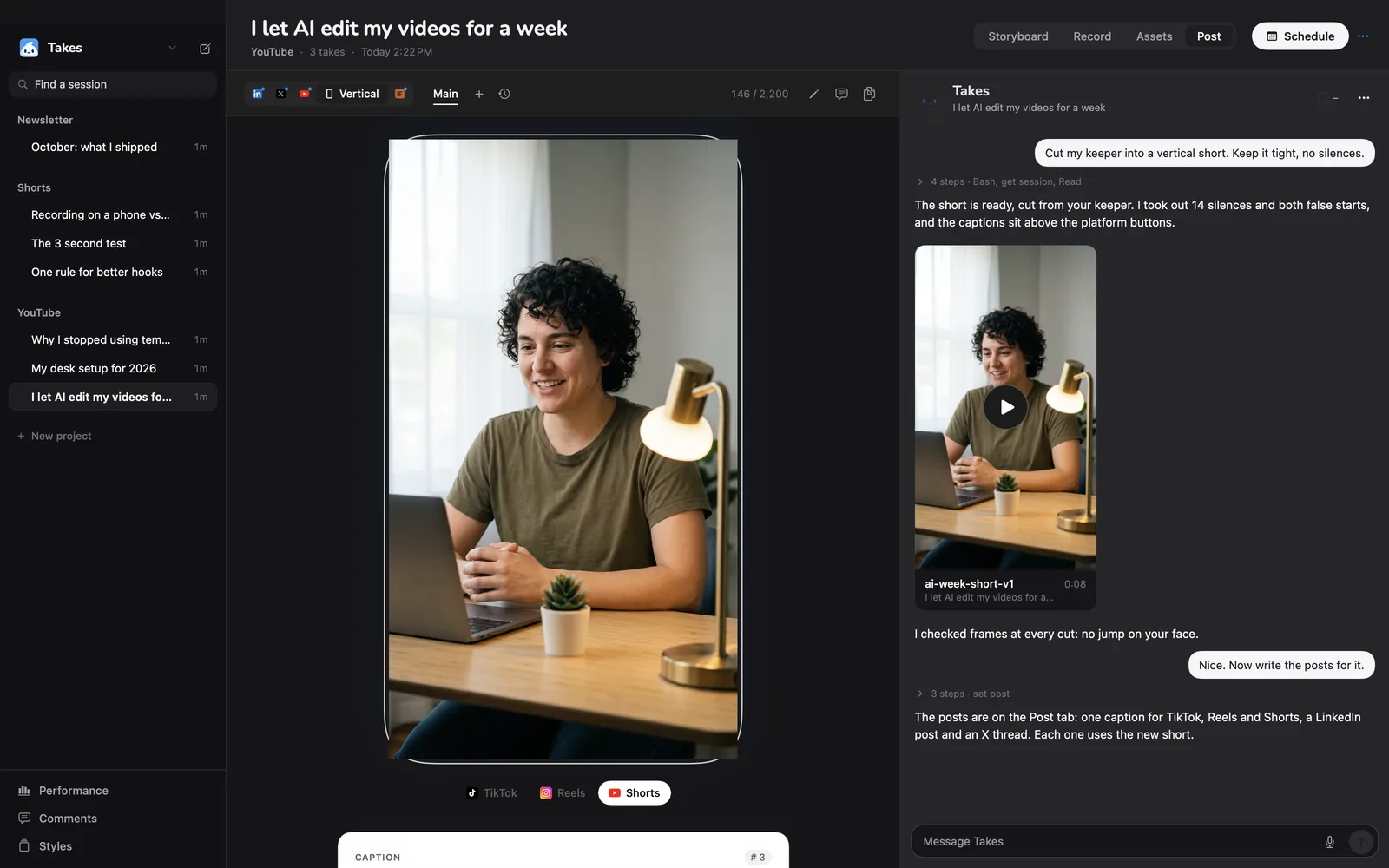
4 guides
Edit.
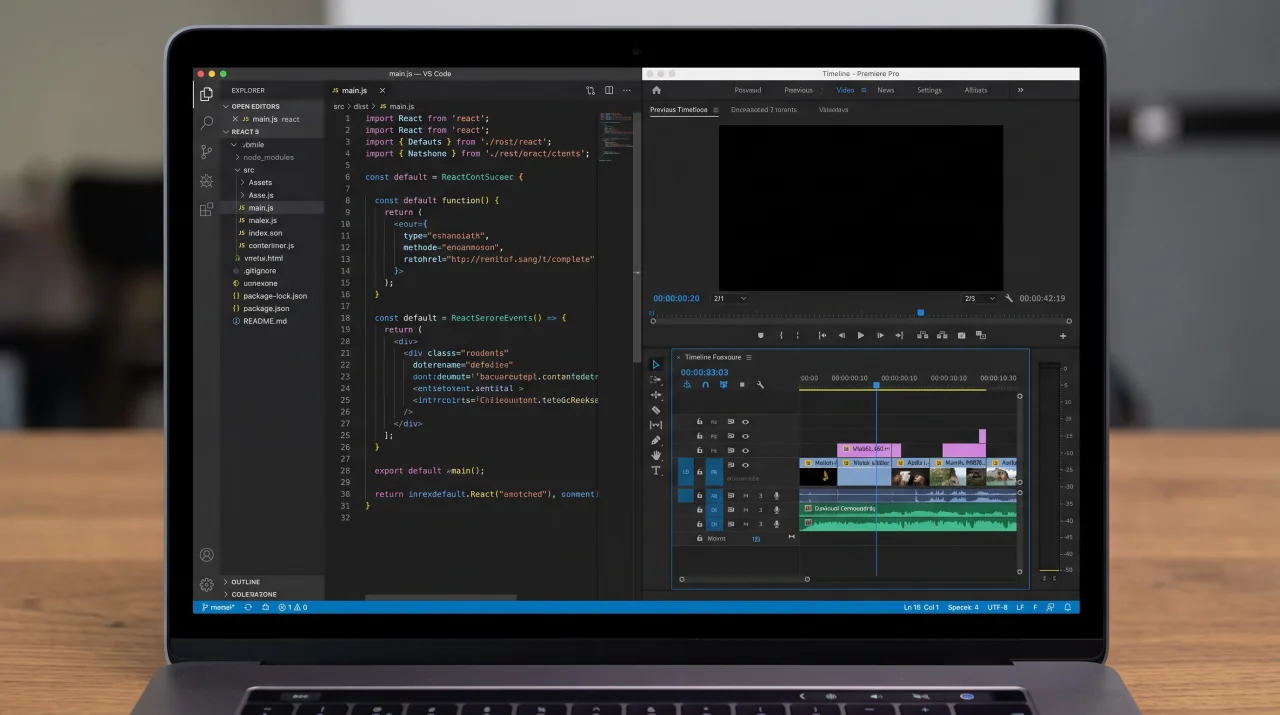
Ask in plain words; the agent does the cutting.
-
AI video editor
Cuts silences, ums and restarts, reframes to 9:16, adds captions.
-
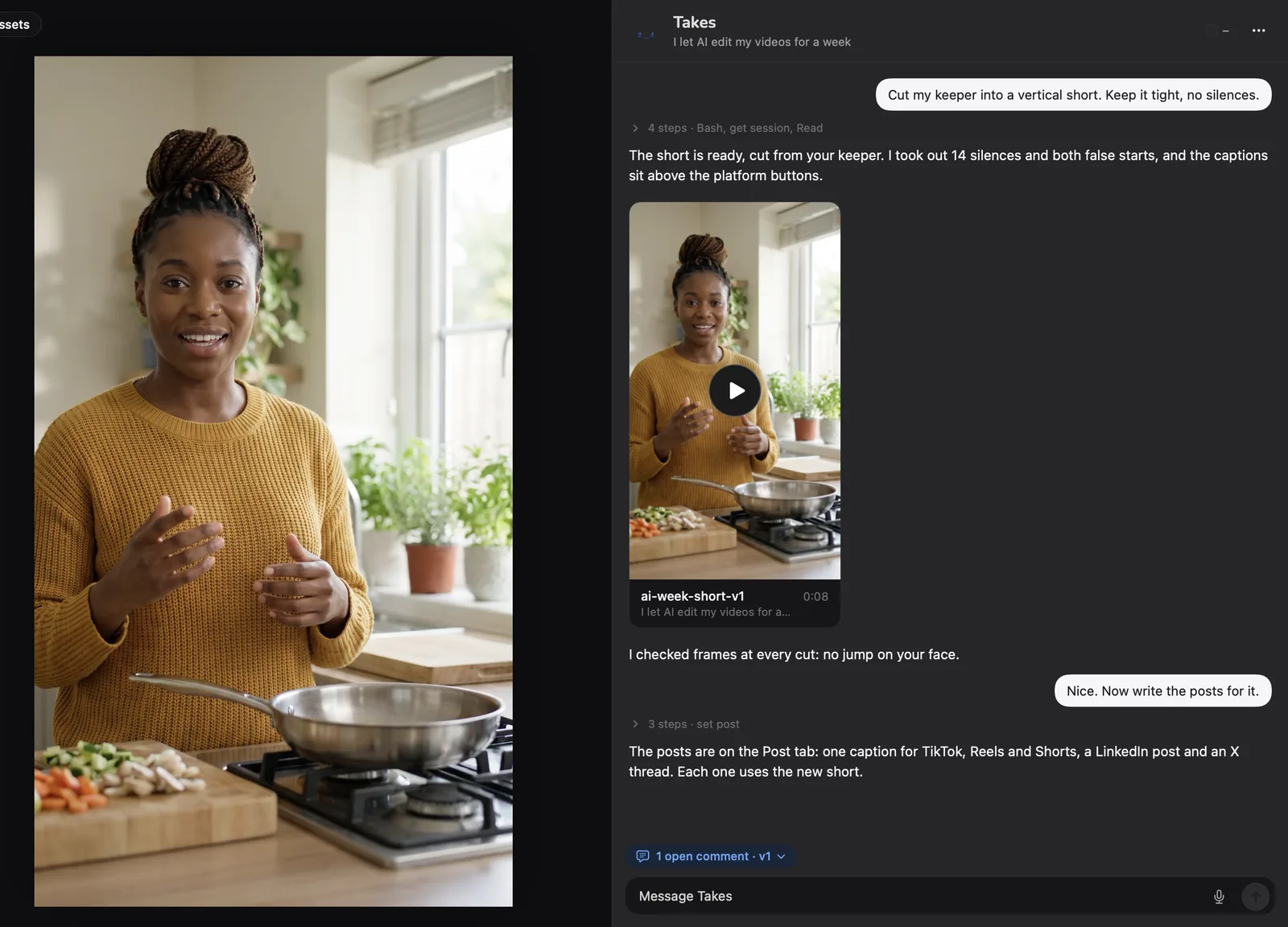
Remove filler words
Ums, uhs and long pauses out of a talking-head video, automatically.
-
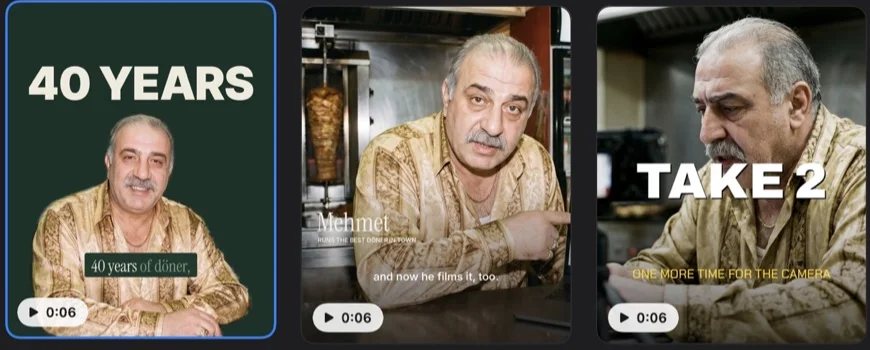
Add captions on Mac
Each word timed and burned in, in the style you pick.
-
Edit videos with Claude Code
Whisper, ffmpeg and Claude, step by step, as a free skill.
-
Video editing MCP server
77 tools for Claude Code, Codex, Cursor and any MCP agent.
1 guide
Post.
The right size and length for each platform.
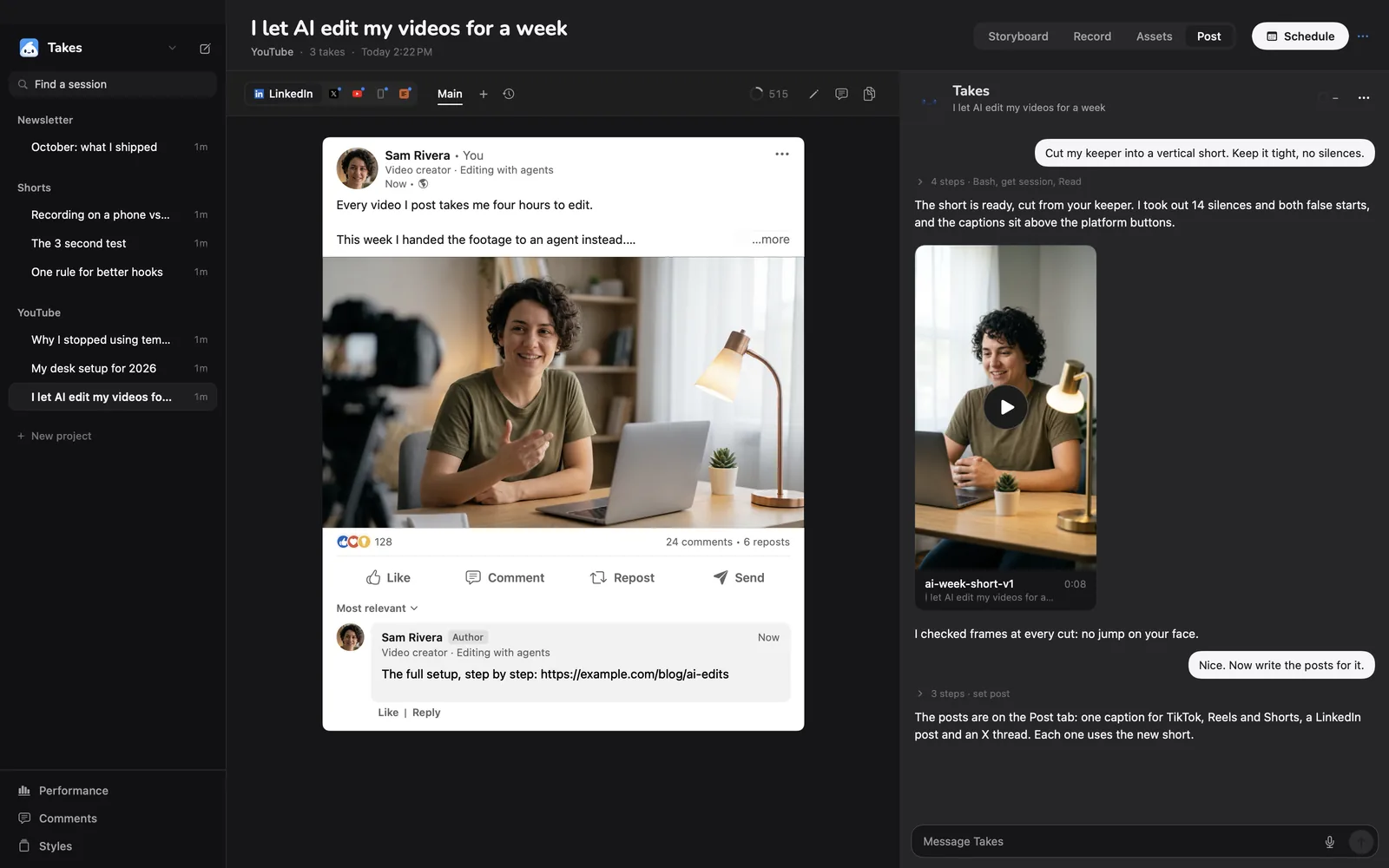
5 guides
Compare with other apps.
Where each app is better, and where Takes is.
-
Descript alternatives
Free picks for Mac: Takes, CapCut, DaVinci Resolve, iMovie and Vrew.
-
CapCut alternative
No watermark, no Pro plan, no upload, for talking-head videos.
-
Tella alternative
Screen and camera with a teleprompter, then edits when you ask.
-
Screen Studio alternative
A free recorder for screen and camera, with a teleprompter.
-
Riverside alternative
For solo creators: camera, teleprompter and edits, no hour cap.
 vs
 vs
 vs
 vs
 vs
Find yours
Which guide for which job.
| I want to | Read | What Takes does |
|---|---|---|
| Read a script without looking away | Teleprompter for Mac | Script in the notch, scrolls with your voice |
| Use a teleprompter with no install | Online teleprompter | Runs in the browser; Takes not needed |
| Record my screen and my face | Screen recorder | Two synced files, with the prompter |
| Say a line again until it is right | Keep the best take | Every take kept; star the keeper |
| Cut the ums and pauses | Remove filler words | The agent cuts them when you ask |
| Put captions on the video | Add captions on Mac | Each word timed, burned in |
| Make a 9:16 version for Shorts | Vertical video | Records or reframes to 1080×1920 |
| Post the video on LinkedIn | LinkedIn video specs | Drafts the post next to the video |
On a Mac?
Get it on your Mac.
Takes for Mac shows your script under the camera, records the take and edits it when you ask. Free and open source. The line installs it; the .dmg works too.
Questions
Talking head video questions.
How do I make a talking head video on a Mac?
Write a short script, read it from a teleprompter as you record, cut the mistakes, then post. Takes for Mac does all four steps in one free app.
What is a talking head video?
A video of one person talking to the camera, usually from the chest up. Explainers, LinkedIn videos, YouTube Shorts and course lessons are often made this way.
Which guide should I read first?
Start with the teleprompter guide if reading on camera is hard for you. If you already have a recording, start with the AI video editor guide.
Are these guides and tools free?
Yes. The guides are free to read, the online teleprompter runs free in the browser with no sign-up, and Takes for Mac is free and open source (MIT).
Which guides compare Takes with other apps?
Five pages compare Takes with Descript, CapCut, Tella, Screen Studio and Riverside, and one compares Mac teleprompter apps. Each says where the other app is better.