Free, on any phone
$0/month
Start here for your first three clips.
- Script
- Notes or ChatGPT Free
- Record
- Phone camera
- Edit
- CapCut Standard
- Post
- LinkedIn, YouTube Studio
The catchYou trim and type captions by hand. Keep the first batch short.
 Takes
Guides Founder video tools
A founder can script, record, cut, caption and schedule short videos for LinkedIn and YouTube Shorts with four free tools: ChatGPT for the outline, a phone camera, CapCut for cuts and captions, and the schedulers built into LinkedIn and YouTube Studio. On a Mac, Takes for Mac is a free app where you record with a teleprompter, then your own AI agent cuts the take and drafts both posts.
If you already have a podcast or webinar, skip to step 6. OpusClip finds the clips.
 9:16
LinkedInYouTube Shorts
One file, two feeds
Total per month$0
The slow part is typing captions by hand. The other setups below remove it.
Pick a setup
Each one ends with a 9:16 clip on LinkedIn and YouTube Shorts. They differ in what you pay and how much you do by hand.
US list prices, billed monthly, checked . Use the phone and Mac you already own.
Free, on any phone
$0/month
Start here for your first three clips.
The catchYou trim and type captions by hand. Keep the first batch short.
Free, on a Mac
$0app, plus your AI plan
For solo clips you read from a script.
The catchApple silicon Mac with macOS 15 or later. The agent plan can cost money. Where Takes fits
Pay for AI editing
$24–$39/month
For editing the words instead of a timeline.
The catchYou still check every cut and caption before you post.
Hand it to a person
$495/month
For when your hour is worth more than the fee.
The catchThe fee pays for editing only. You still record, review and publish.
Tools by step
Seven steps take an idea to a scheduled post, and each has a free option. Start here marks the tool to try first.
US prices and plan details checked . Paid prices use monthly billing.
One point per clip. Write the first line the way you would say it to a customer.
Free
An opening line and three bullets, said in your own words.
Free plan · paid tiers
Turns a rough idea into an outline. Check every claim before you read it out.
Lens at eye level. Keep a note next to the lens, or use a teleprompter.
Free · built in
A solo clip, shot upright.
 QuickTime Player
Free · built in on Mac
A quick webcam take. See how to record yourself on a Mac.
TakesFree Mac app
The script scrolls as you speak while you record.
 Riverside
Free tier · Pro $29/mo
Remote guests on separate tracks. Pro adds a host prompter. Compare with Takes.
Remove false starts and long pauses. Keep the pauses that sound natural.
 CapCut
Free Standard · paid Pro
Trim and split by hand on a timeline. Compare with Takes.
 Descript
Free tier · Hobbyist $24/mo
Edit the video by editing its transcript. Hobbyist removes filler words with AI. See Descript pricing and how it compares.
TakesFree app · your agent plan
Your agent makes a first cut from the script. See how it removes filler words.
Check names against the audio. Then watch the clip muted on a phone.
CapCutFree manual captions · AI tools in Pro
Type and place a few lines in the editor you already cut in.
Free tier · iOS Max $24.99/mo
Automatic captions on iPhone. The free tier lists one caption template.
TakesFree app · your agent plan
Your agent adds captions to the edit, or makes a separate .srt file.
Shoot upright if you can. If the source is wide, check that the crop keeps your face and anything you point at.
Free · built in
Turn the phone upright before you record. Normal Video mode is enough.
CapCutFree editor · paid Pro
Reframes a wide clip you already have, with control over the crop.
TakesFree Mac app
Shows the 9:16 frame while you record on a Mac.
Only if you already have a podcast, interview or webinar. Pick moments that make sense alone. A strong answer can still need a new first line.
Free with watermark · Starter $15/mo
Finds, reframes and captions clips from a webinar or podcast you already have.
RiversideFree tier · Pro $29/mo
Magic Clips, for interviews you already record in Riverside.
DescriptFree tier · Hobbyist $24/mo
Suggests clips that you fine-tune in the transcript editor.
One export can serve both feeds. Write the LinkedIn post and the Shorts title separately.
Free · built-in scheduler
Post or schedule directly. See LinkedIn video specs and upload steps and how to schedule a LinkedIn post.
Free · built-in scheduler
Upload and schedule Shorts directly. Check the Shorts size, length and safe zone.
Free tier · paid per channel
LinkedIn and Shorts on one calendar. Free covers up to 3 channels and 10 queued posts per channel.
A weekly routine
One sitting makes the clips for the whole week. Budget 35 to 60 minutes of hands-on work for three simple talking-head clips, once your gear and accounts are set up.
The minutes are a rough estimate, not a timed test. Your first session will take longer.
One session estimated minutes
Low endHigh end
The week one example
Takes for Mac
Takes is our app, so here is the plain version. It is built for one person talking to a Mac camera.
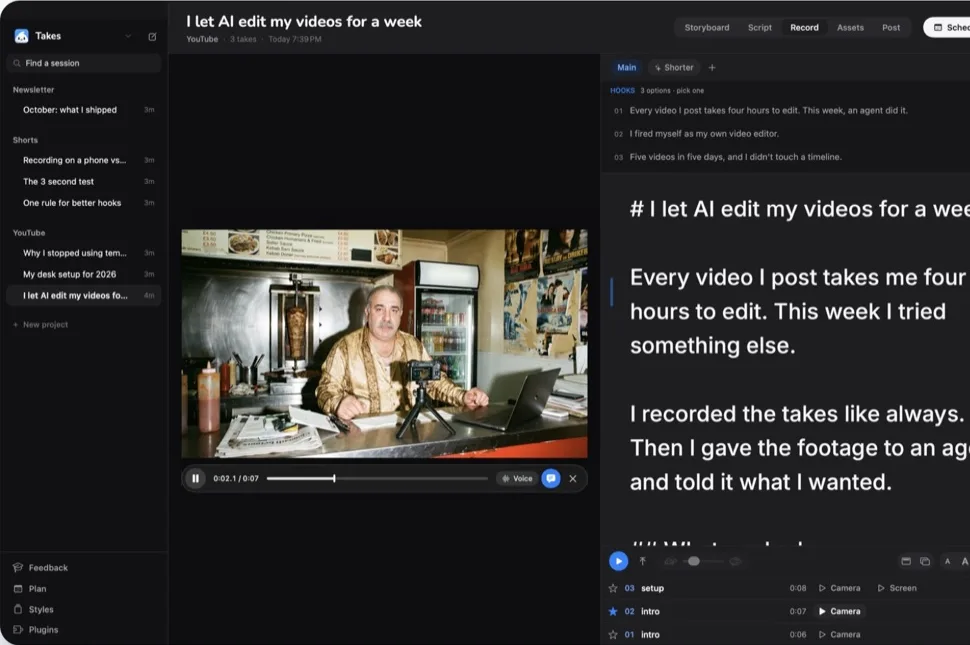
What it costs. The app is free and needs an Apple silicon Mac with macOS 15 or later. Cuts, captions and post drafts need an AI agent, such as Claude Code, on your own plan. That plan can cost money.
Download TakesGo deeper
FAQ
Use ChatGPT Free for an outline and the Captions free tier on iPhone for automatic captions. Record on your phone, trim in CapCut Standard and use the platforms’ own schedulers.
Export your clip, open the LinkedIn post composer and attach the video. Check the captions, write a short opening line and post it or choose a scheduled time.
Yes. Start with a 9:16 export. Keep faces and captions away from the edges, check each platform’s preview, and write a separate title or post for each one.
Use OpusClip to find and reframe moments from an existing recording. If you recorded in Riverside, try Magic Clips there first. Watch the picks before you publish.
Yes. QuickTime Player records your webcam and CapCut Standard handles basic edits and manual captions. Use LinkedIn and YouTube Studio to queue the finished files.
The Mac app is free. AI cuts, captions and post drafts use an agent on your own plan, which may cost extra.